Controls & settings
GTA 6 Aircraft Camera: Follow Roll, Banking and Roll Deadzone
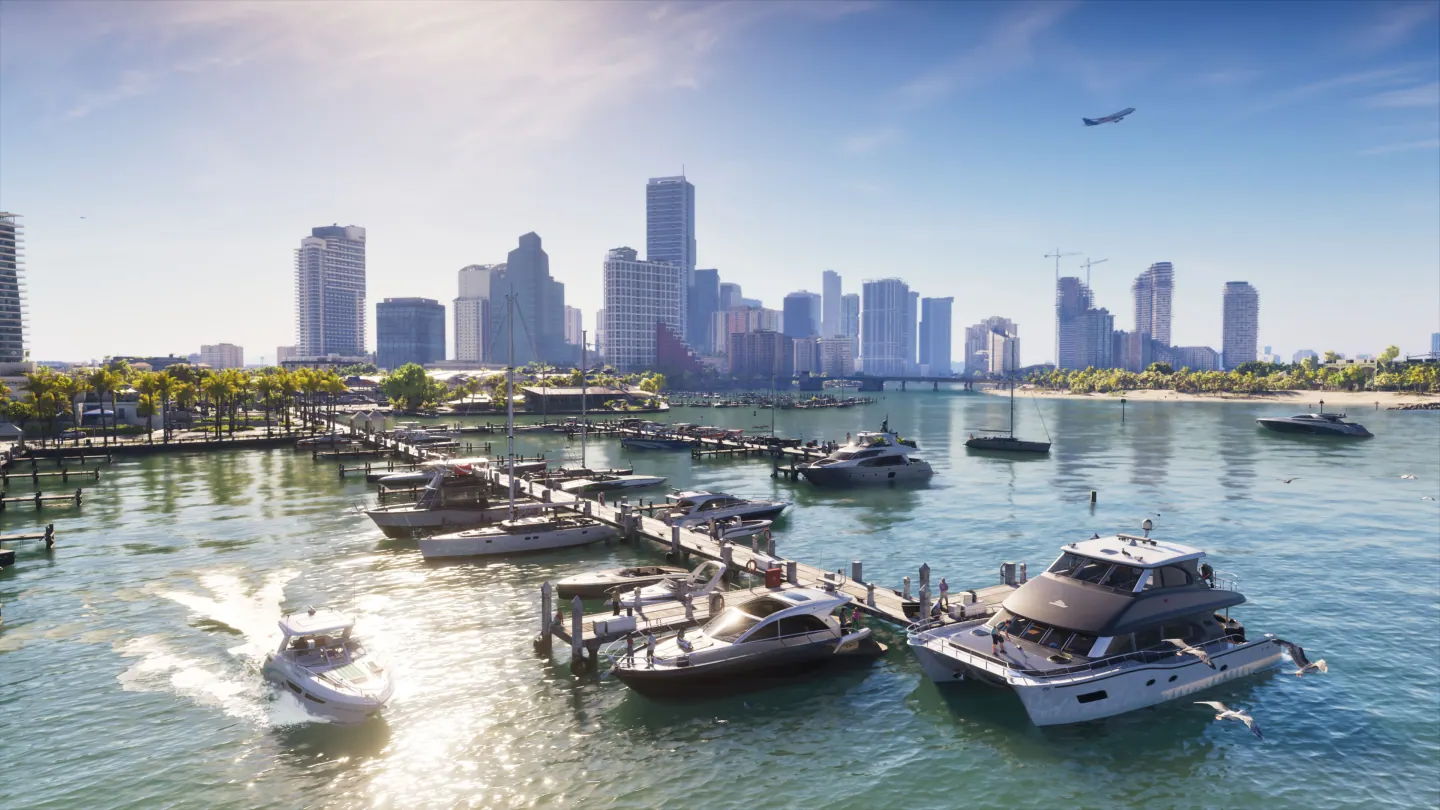
Quick answer
Open Settings → Camera → Aircraft. Switch Follow Roll off if you want the camera to stay level when the plane banks. To keep the tilt but ignore small banks, leave Follow Roll on and increase Roll Deadzone Range. Use Follow Roll Speed to adjust how quickly the camera follows a larger roll.
Use the Aircraft group below Comfort
The recorded menu shows Follow Roll Speed and Roll Deadzone Range under the Follow Roll toggle. If those rows vanish, re-enable Follow Roll to adjust them.
| What you want to change | Aircraft camera row |
|---|---|
| Keep the horizon from tilting with the aircraft | Follow Roll → Off. |
| Keep the tilt in big turns and level the view during small banks | Follow Roll → On. Increase Roll Deadzone Range in steps. |
| The camera rotates too quickly once it starts following the bank | Decrease Follow Roll Speed a little and repeat the same turn. |
| Looking to the side or up and down returns too slowly | Use Horizontal or Vertical Follow Speed. Choose the direction you want to change. |
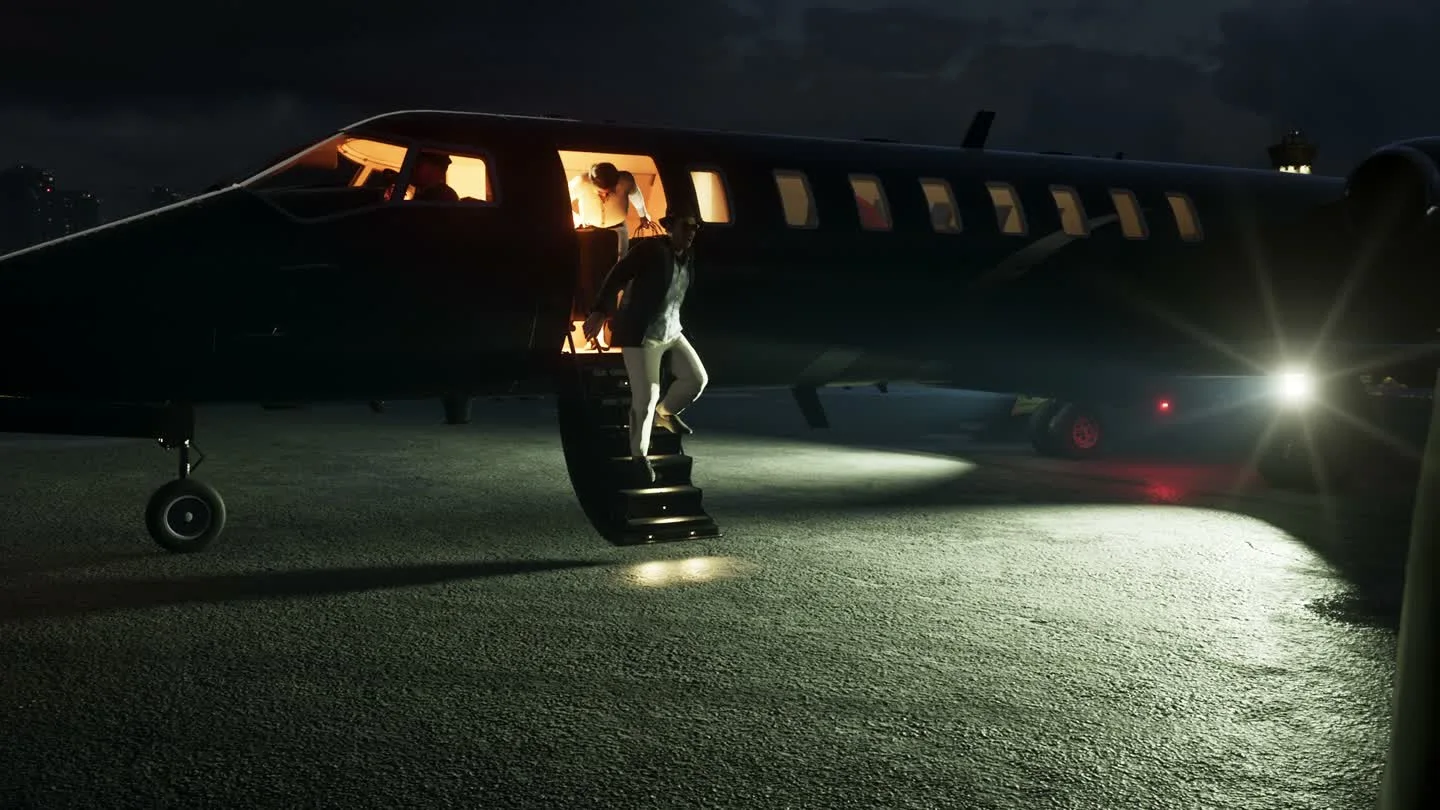
Compare a shallow bank with a wider turn
- Use the same in-game aircraft and camera distance for both tests. Fly level and then make a shallow turn where you can see the horizon.
- Repeat with a wider bank. If only the small correction bothers you, compare one higher Roll Deadzone Range setting. If the camera tilts too abruptly after the bank starts, change Follow Roll Speed.
- If the plane itself moves unexpectedly, check Aircraft in the Control Scheme preview. These Camera controls adjust how the view follows the aircraft.
Frequently asked questions
What does Roll Deadzone Range do in GTA 6?
It sets how much the aircraft can roll while the view stays level when Follow Roll is enabled.
Should I use Follow Roll Speed to change how fast the plane turns?
Use the flight controls to steer the aircraft. Follow Roll Speed sets the camera’s response to roll.