Setup & support
How to Reduce Display Input Delay in GTA 6
Quick answer
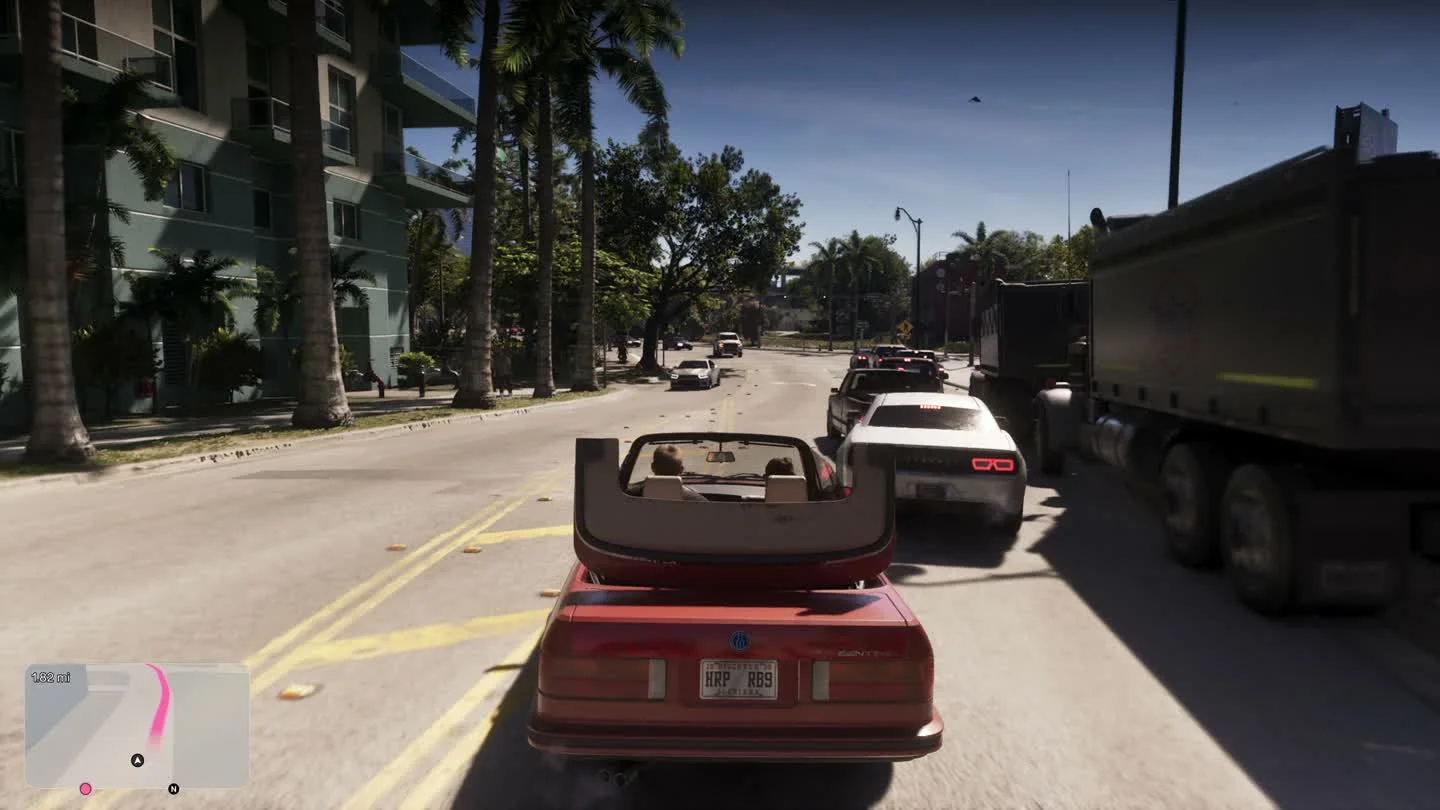
Use your TV’s Game Mode on the console HDMI input and turn its motion interpolation off for a baseline. Test one camera turn with GTA VI installed locally. TV processing can add delay beyond the game’s 30 fps target, and cloud or Remote Play adds another path to test.
Run the same camera test in Game Mode
- Connect the console to the display and select Game Mode for that particular HDMI input. If your TV supports Auto Low Latency Mode, check that the TV actually switched to its low-latency mode.
- Turn TV motion interpolation off. Test the same camera movement or turn in the same location each time.
- If you want smoother panning, retest with any motion-smoothing option available inside Game Mode and compare how the camera responds.
Read display timing and local game performance separately
RTINGS measured 14.5 ms on a TCL QM8L at 4K60 in Game Mode and 24.5 ms with its in-mode interpolation enabled. These are display measurements on that model. Controller-to-screen delay for GTA VI includes the controller, console, game and display.
Interpolation can change how smooth motion looks. The local console build still targets 30 fps. If timing only feels delayed in Cloud Gaming or Remote Play, compare with the installed game to isolate the streaming part of the path.
Frequently asked questions
Does a 120 Hz TV make GTA 6 run at 120 fps?
The TV refresh rate is its input and display setting. Rockstar’s launch game target is 30 fps.
Can motion smoothing add controller delay?
TV interpolation adds processing time. RTINGS measured different delays across models and picture modes.
What players are asking
Does TV smoothing change controller response?
RTINGS shares its own measurements with players