VICE KEYS

Controls & settings

GTA 6 D-pad Hold & Release for Radio and Quick Navigation
Vice Keys Published

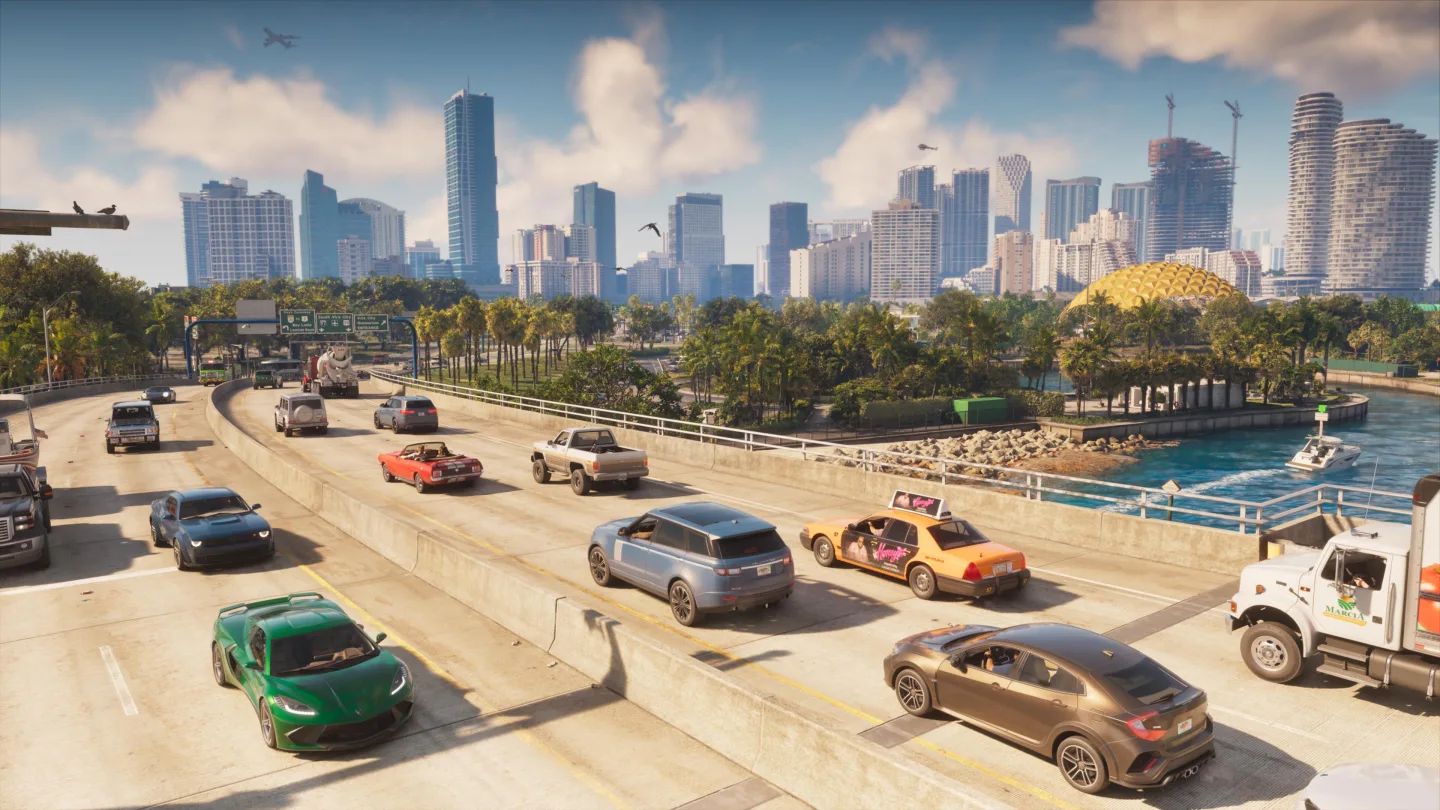
Cars travel on a broad highway with the Vice City skyline behind them
Image © Rockstar Games

Quick answer

Open Settings → Gameplay → Accessibility → Directional Button Actions and select Hold & Release. Start with a hold of D-pad Left for the radio or D-pad Down for Quick Navigation. Release the direction to keep the menu open, then press it again when you are done.

Use the row between Focus and Aiming

  1. Pause and open Settings → Gameplay. Move past Combat and Movement to Accessibility.
  2. Find Directional Button Actions immediately below Focus. Change Hold to Hold & Release. The description names both quick navigation and the radio as examples.
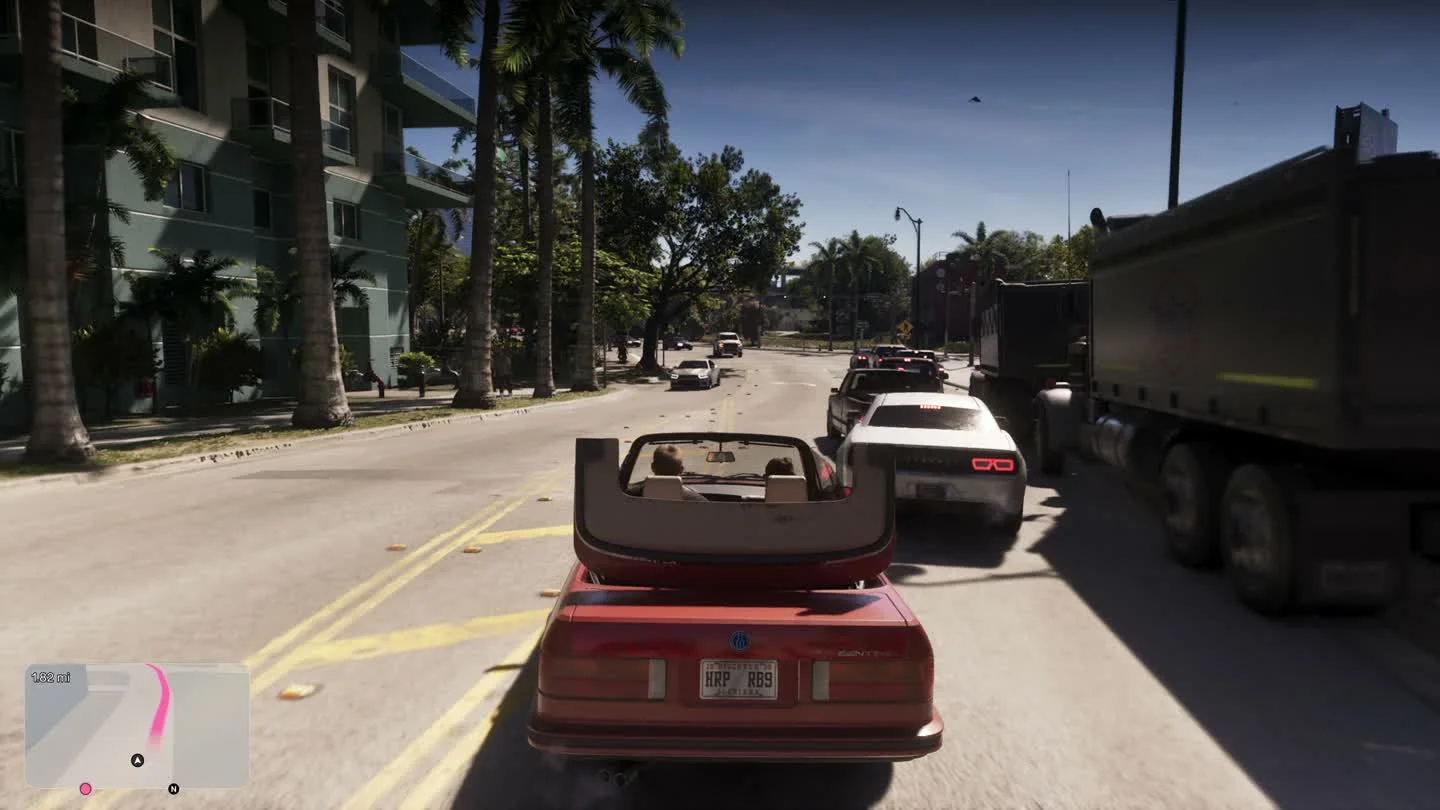
  3. Return to free roam and test while seated in a car with a radio. Hold D-pad Left until the strip opens, then let go. Use the station prompts and press Left again to close it.
A yellow and cream 1955 Vapid Stanier passes glowing storefronts at night
Image © Rockstar Games

Test both menus without changing the full map or the loadout

What you wantWhich action to test
Keep the radio strip open while browsingHold D-pad Left in a vehicle, then release after the strip appears.
Take more time choosing a nearby destinationHold and release D-pad Down to open Quick Navigation. Highlight the objective, then use its set-destination prompt.
Blink leftTap D-pad Left while driving. Begin with a deliberate hold when you want the radio instead.
Keep the weapon wheel openUse the separate Loadout setting for L1 or LB.

Frequently asked questions

Why do I still have to hold Left to open the radio?

Hold & Release starts with a hold. It lets you release the D-pad once the radio strip is open.

Does this setting also keep the loadout wheel open?

Choose Hold & Release in the separate Loadout row to change the bumper and weapon wheel.
Sources