Setup & support
GTA 6 Xbox HDR Settings for a Washed-Out or Dim Picture
Quick answer
On Xbox Series X|S, open Settings → General → TV & display options → 4K TV details. Confirm HDR compatibility for the current TV input, then run Calibrate HDR for games. If the picture still looks wrong, compare the same GTA VI scene after changing one HDR output option at a time.
Check the Xbox and TV input together
- Use the TV’s gaming picture mode for the HDMI input where the console is connected. Check the input has its enhanced HDR mode enabled if the manufacturer requires one.
- On Xbox, open Settings → General → TV & display options → 4K TV details. Check which video formats are available over the current connection.
- Run Calibrate HDR for games in TV & display options. Follow the displayed test patterns for your own screen.
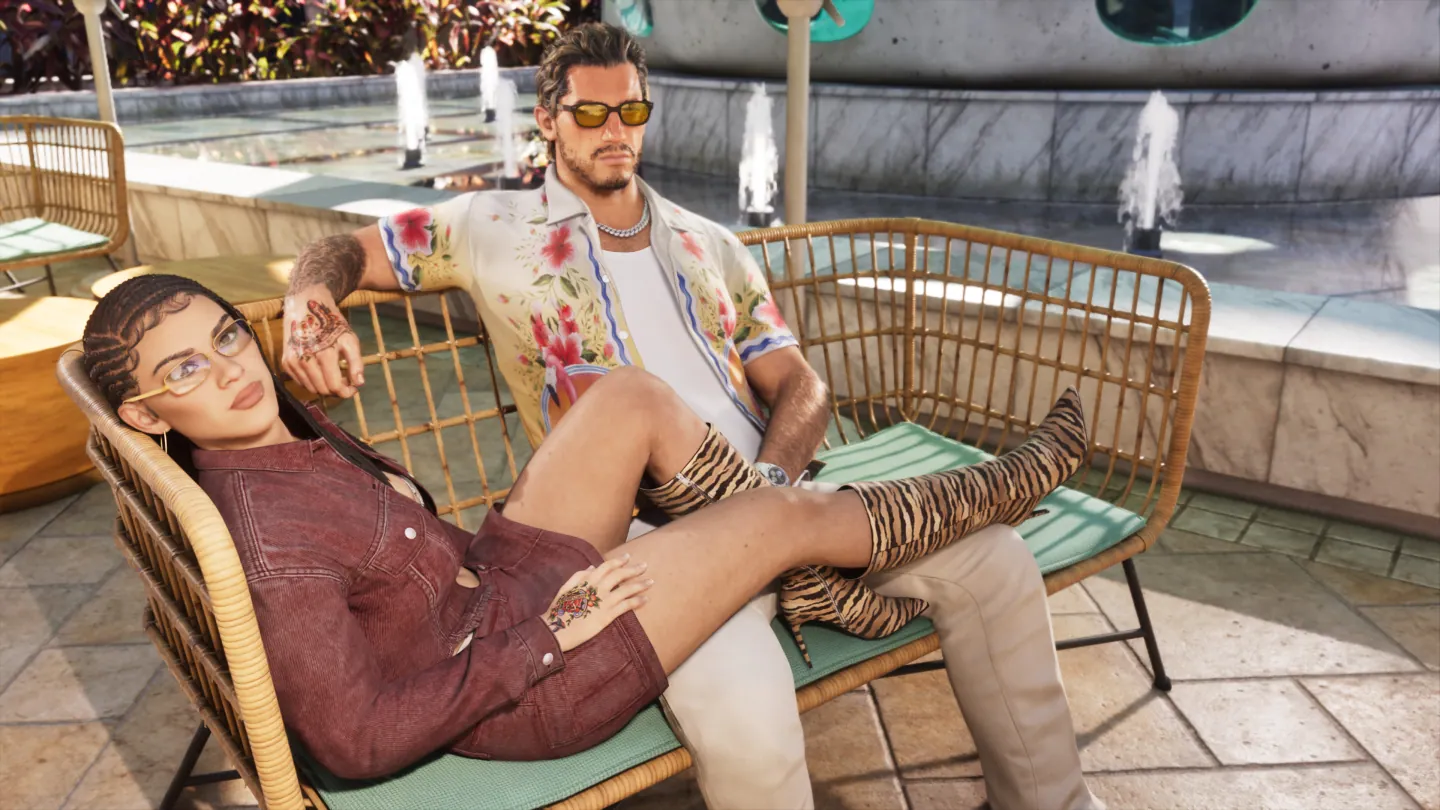
Compare a single scene across output changes
Under Xbox TV & display options → Video modes, test the available HDR10 and Dolby Vision for Gaming settings one at a time. Reopen the game and check the format your TV reports. Xbox’s available output formats depend on the TV and the rest of the HDMI connection.
If the game’s Display menu offers its own calibration, adjust using its test images after the Xbox test. Launch PS5 capture verifies that game-side calibration exists on PlayStation. The Xbox system steps here apply independently.
Frequently asked questions
What number should I use for Xbox HDR brightness in GTA 6?
Use the console and game test patterns on your own display. Two TVs can tone-map the same signal differently.
Does the Dolby Vision indicator prove native GTA VI Dolby Vision grading?
The indicator tells you what output format the television received. Use it to identify your test output and compare the image.
What players are asking
Why does my Xbox picture look different with HDR enabled?
Players compare GTA VI color output on launch day