Setup & support
GTA 6 Phone Display: Switch Between Default and First Person
Quick answer
Pause GTA VI and go to Settings → Camera → Comfort → Phone Display. Choose First Person to see the handset from the character’s view, or Default for the regular phone view. Return to play and tap D-pad Up to compare. Close the phone to return to the normal view, then adjust the driving camera separately if needed.
Change the phone view from the pause menu
- Pause somewhere you can test the view safely in-game. Choose Settings and open the Camera tab.
- Scroll down to Comfort and highlight Phone Display, below Camera Bob and above Aircraft. The filmed row reads Default 1/2 or First Person 2/2. Read the selected value before you leave the menu.
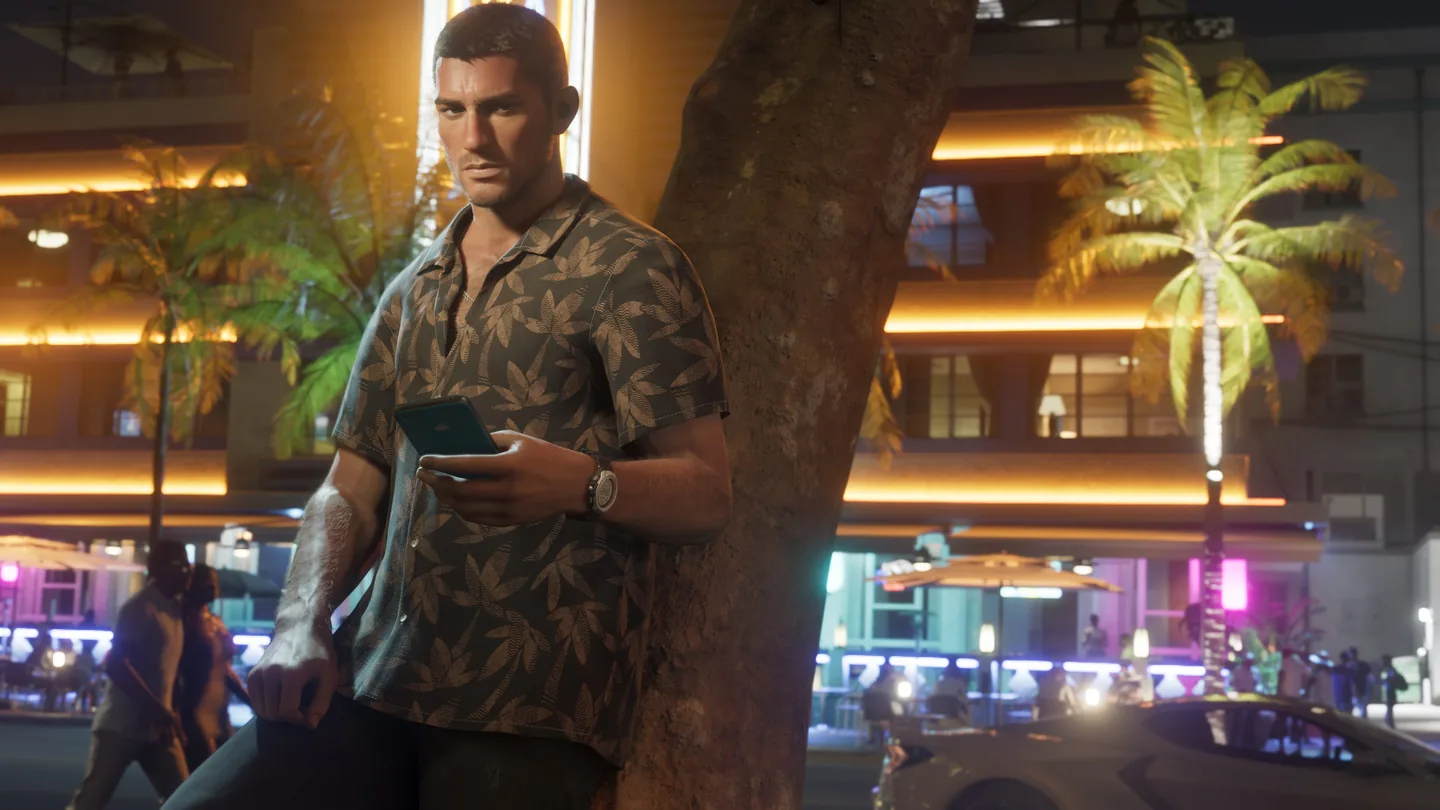
- Return to play and tap D-pad Up to open the iFruit. Check how much of the character and surroundings you see. Close the phone and repeat with the other value if you want to compare.
- Use the same row to switch back. If you are in a vehicle, compare while parked so you can tell which view belongs to the phone and which is the ordinary driving view.
- See the Camera tab just above the Comfort section at 0:15
- See Phone Display set to Default under Comfort at 0:20
- See First Person selected on the same row at 0:23
- Leonida Notebook’s first-hand Series S capture of Default and First Person
- Rockstar Support’s GTA VI settings reference for Camera and Comfort
Check which view you want to change
The Phone Display row applies while you are using the handset. If the view still feels wrong after closing it, check the driving camera distance before changing Phone Display again.
| What you want to change | Where to go |
|---|---|
| How the iFruit is held on screen | Pause → Settings → Camera → Comfort → Phone Display. |
| The wallpaper or incoming call tone | Open the iFruit’s own Settings app. |
| The view after the phone closes | Check the driving camera controls or the normal on-foot view. |
Compare the same app without changing driving views
Open the same phone screen with both settings while standing in the same spot. Look at how the character holds the handset and how much of the surroundings stay in view. The labels in the Camera menu are the reliable way to confirm which mode you selected.
If the phone looks right but is difficult to hear on PS5, check whether phone audio is playing through the controller. If you want larger dialogue text or named speakers, use UI → Subtitles & Captions. Those choices can stay in place when you switch the handset back to Default.
Frequently asked questions
Why can I find Wallpaper but no Phone Display?
Wallpaper is in the Settings app on the phone. Open the game’s pause menu and select Camera for Phone Display.
What button brings the phone back up to test it?
Tap Up on the D-pad in free roam.
Revision history
- · Added a same-app comparison and settings for separate audio or dialogue-readability issues.
Sources
- See the Camera tab just above the Comfort section at 0:15
- See Phone Display set to Default under Comfort at 0:20
- See First Person selected on the same row at 0:23
- Leonida Notebook’s first-hand Series S capture of Default and First Person
- Rockstar Support’s GTA VI settings reference for Camera and Comfort