Controls & settings
GTA 6 Subtitles, Closed Captions and HUD Text Size
Quick answer
Pause and open Settings → UI → Subtitles & Captions. Set Subtitles to On if you want dialogue outside missions. Use Size for the subtitle lines and UI Text Size under Scaling & Readability for interface text.
Show dialogue and sound cues
The PS5 launch setup can leave subtitles on Mission Only after you set a size. This can explain why a story scene is subtitled while dialogue in free roam is missing. Open the Subtitles row in the UI tab and change it to On to follow eligible dialogue outside missions.
| What you want to see | Where to adjust it |
|---|---|
| Spoken dialogue outside missions | Set Subtitles to On in Subtitles & Captions. |
| Descriptions of sounds | Set Closed Captions to On for both non-speech and environmental captions. |
| Who is speaking | Turn on Speaker Names. |
| A more legible line over bright scenery | Increase Size, then try a Background option. Use the on-screen sample line to compare. |
Enlarge text, markers or map icons independently
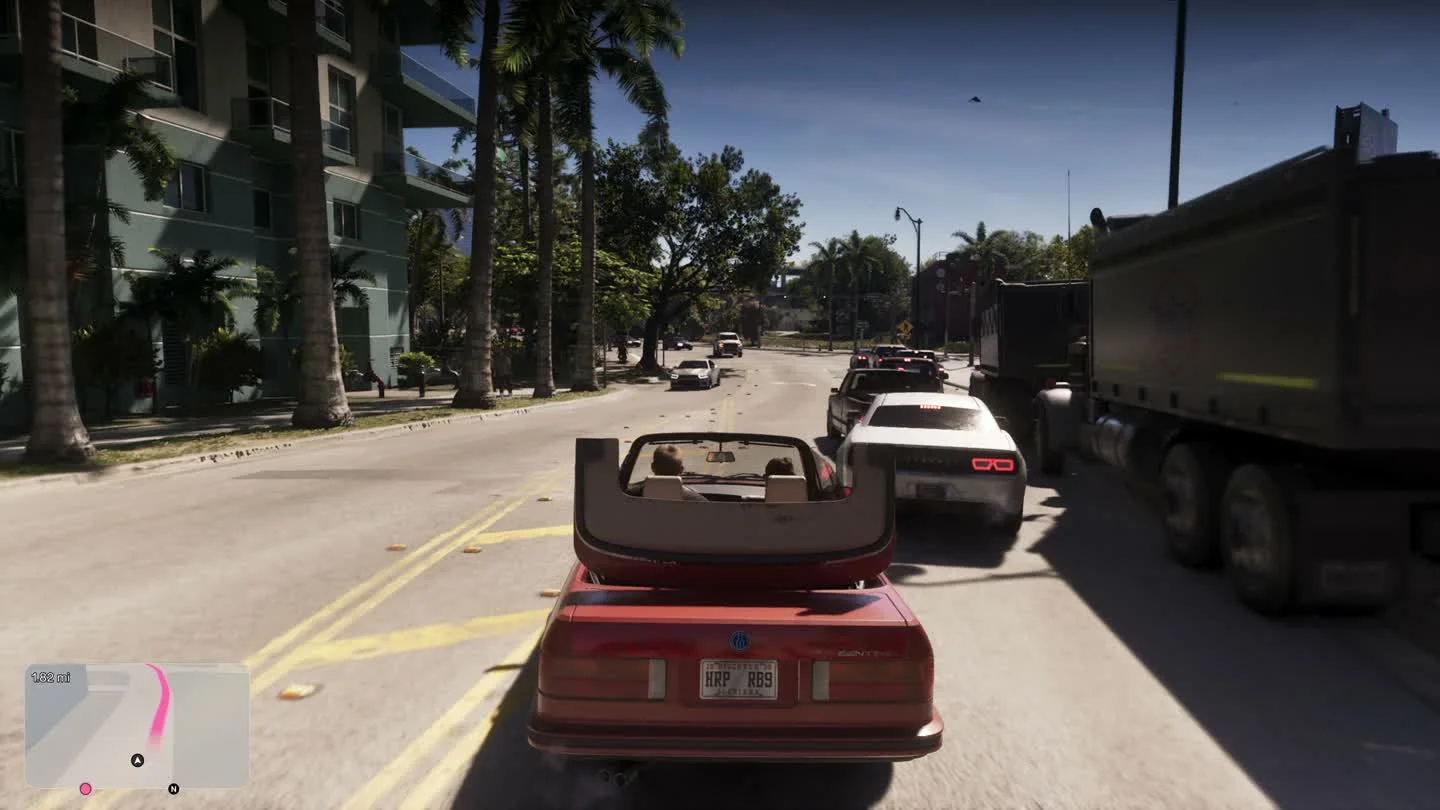
Go to UI → Scaling & Readability and raise UI Text Size if the interface labels are hard to read. Adjust Map Blip Size to enlarge symbols on the full map and Minimap Blip Size for the corner map. In-World Marker Size affects markers in the scene and the compass. Change the one you actually have trouble seeing so the rest of the display stays familiar.
If labels are cut off at the edges, use Display → Safe Zone to fit the interface inside the picture. Check for TV overscan if the whole picture is cropped. Larger text and smaller edge margins address different symptoms.
Make prompts easier to notice
If you rely on visual cues for nearby threats, check Threat Indicators in the UI tab’s Combat group. If objects or people are still hard to distinguish against the environment, try High Contrast Shaders under Display and see how it looks in free roam.
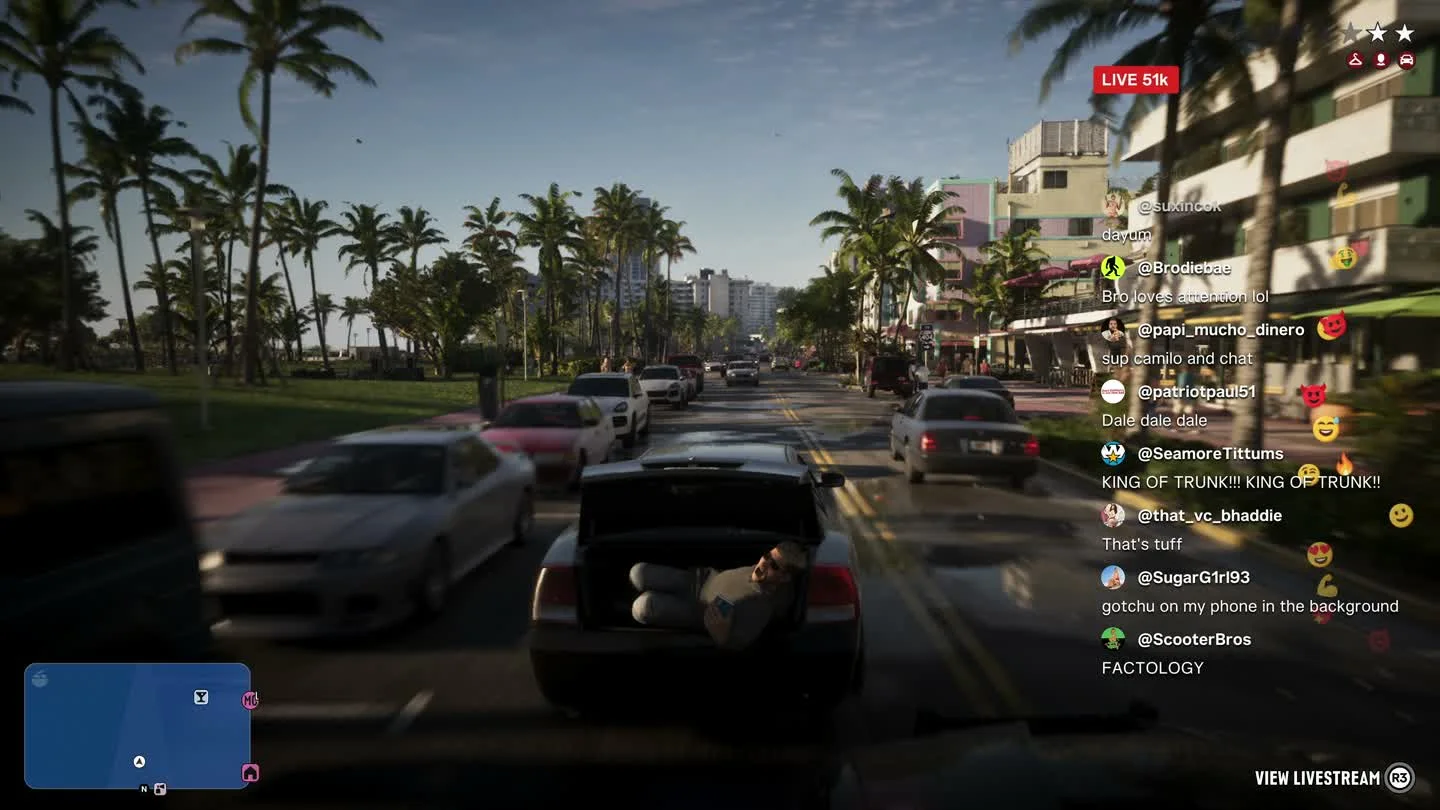
Try your subtitle setup in a bright outdoor scene as well as a night scene. A background behind the text can help there without requiring a larger subtitle setting.
Frequently asked questions
Can I enlarge subtitle text without enlarging menus?
Yes. Adjust Size under Subtitles & Captions and leave UI Text Size under Scaling & Readability at its current setting.
Why do I see words in missions but not in the street?
Check for Mission Only in the Subtitles row. Change it to On if you want more dialogue, and use Closed Captions separately for sound cues.