Activities
GTA 6 Photo Studio Lighting: Light a Face Without Washing Out the Shot
Quick answer
Pause and open Photo Studio in free roam. Switch to Lighting, select an empty slot and pick a preset. Use the beam guide to move and aim the light at the subject, then lower its Intensity until you can see details in bright clothing and skin. Use a second slot only if you want to fill a shadow or light the background separately.
Open an empty slot and switch on the first light
- Hold a scene with the subject still in the frame. Pause and open Photo Studio. On PS5, use L1 or R1 to reach Lighting. Use the corresponding bumper prompt on Xbox.
- Choose the first Empty Slot. Select a preset and check that Visibility is on in that slot. The editable light has a visible guide that shows where it is pointed.
- Look for the patch the beam actually illuminates. If it covers the grass by your subject’s feet, position or turn the light while still inside its slot. Check the face again before you change effects or add more lights.

Fix the local light before brightening the whole image
Toggle the selected slot’s Visibility to judge how much it contributes. This is especially helpful if two lights overlap. Once the portrait is set, use Hide UI, check the edges of the image, then save it.
| What the preview shows | Change to try |
|---|---|
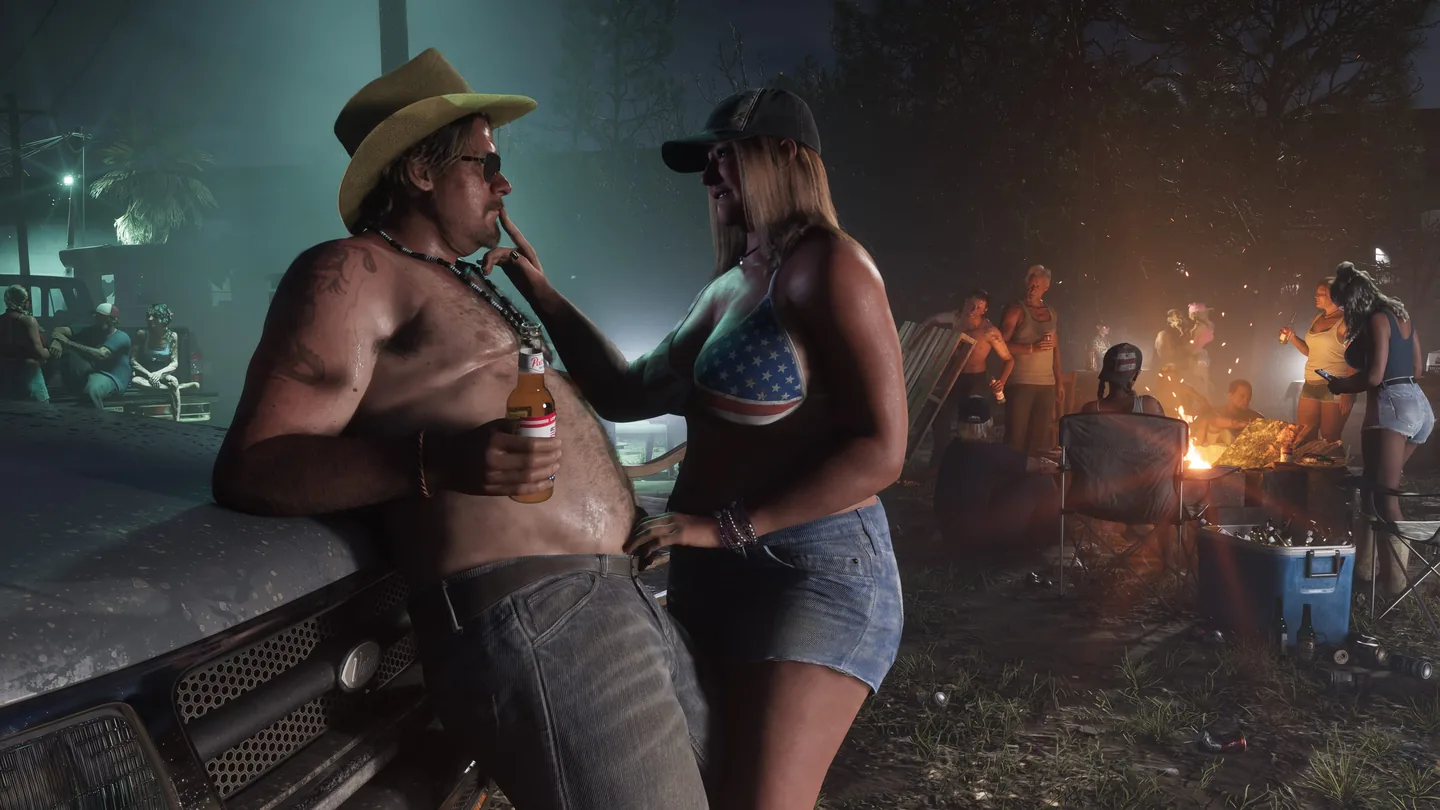
| The ground is bright, but the face is dark | Watch where the guide points and reposition the light. The Xbox recording shows a second beam falling across the legs and grass. |
| A shirt or a face has become a flat white patch | Lower that slot’s Intensity. Compare shadow detail with the same camera angle and preset. |
| The subject is readable, but the background is too dark | Add a second slot and aim it behind the subject. Start with a lower Intensity and leave the first light in place. |
| The whole frame is too bright or too dark | Open Effects and adjust Exposure after setting the lights. Use Highlights to rein in the brightest areas. |
Frequently asked questions
Why did adding a light brighten the grass instead of my character?
Look at the beam guide. Move or turn the light in its slot until the illuminated patch lands on the character’s face or torso.
Can I check the effect of one light without deleting it?
Use the slot’s Visibility toggle and compare the preview before and after.
Where do I find the finished PS5 shot?
Use Save Photo in Photo Studio. The PS5 records it in Media Gallery, which you can open from the Games home screen.