Controls & settings
GTA 6 Phone Camera at Night: Use Filters 16 and 17
Quick answer
Tap D-pad Up, open Camera on the iFruit phone and use the rear view. On Filter 1/17, tap D-pad Left to wrap to 17/17. Compare it with 16/17 while looking at the same dark area. The filmed purple preview makes some shore and dock edges easier to see. Exit the Camera to return to the normal gameplay view.
Turn on the rear camera and go to the end of its filter list
- Open the phone and select Camera. Use the rear view so D-pad Left and Right control Filter. If the screen shows Pose or Expression, use the Rear Camera prompt first.
- On the unfiltered 1/17 view, tap Left to select 17/17. Compare the purple view with 16/17 and the normal image from the same spot. The filmed comparison at a dock shows a fence, pilings and the house staircase with the different filters.
- Use the separate Light prompt if you want to change the camera’s light. On the recorded PS5 layout it uses L1. Keep the same light state when comparing the filters.
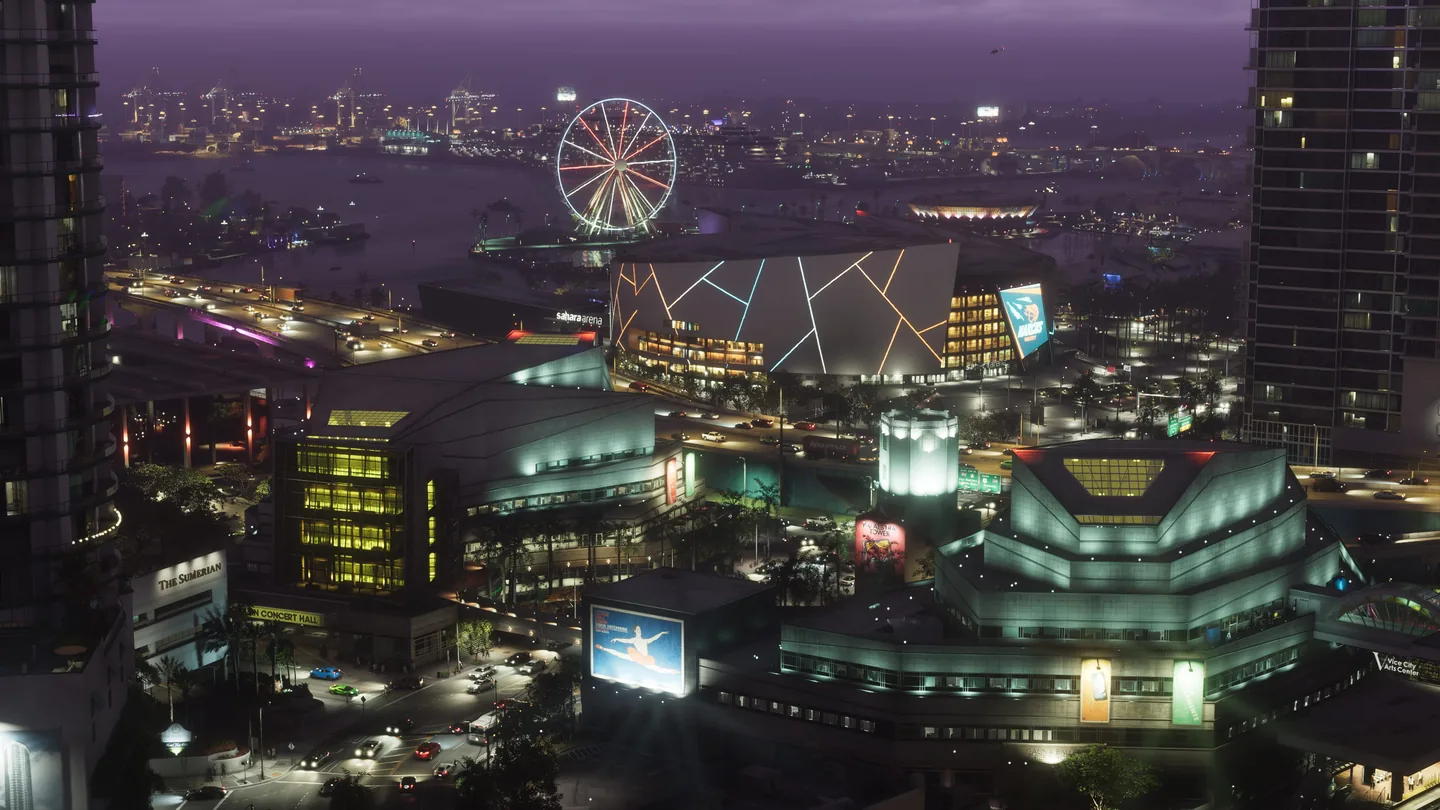
Choose the phone preview, a handheld light or mission goggles
| What you want to see | Which view to use |
|---|---|
| A distant unlit part of the dock or stairs | Try the last two rear-camera filters. Check the edges in the normal view again before moving. |
| The ground while walking around a dark interior | Use the handheld flashlight and keep the ordinary movement view. |
| A dark route that explicitly gives you goggles | In Bird in the Hand, follow the Night Vision prompt for the issued goggles. |
| A framed nighttime picture with manual lighting | Pause in free roam and use Photo Studio's Effects or Lighting tabs. |
Frequently asked questions
Why does Left change my expression instead of the filter?
Switch back to the rear camera. Left and Right are for Expression in selfie view and Filter in the rear view.
Do I need to buy anything to use the purple filter?
The clip shows it in the normal iFruit Camera’s filter list. Open Camera, check the filter counter and compare the last two looks.