Controls & settings
How to Use Headphones, Radio and Podcasts in GTA 6
Quick answer
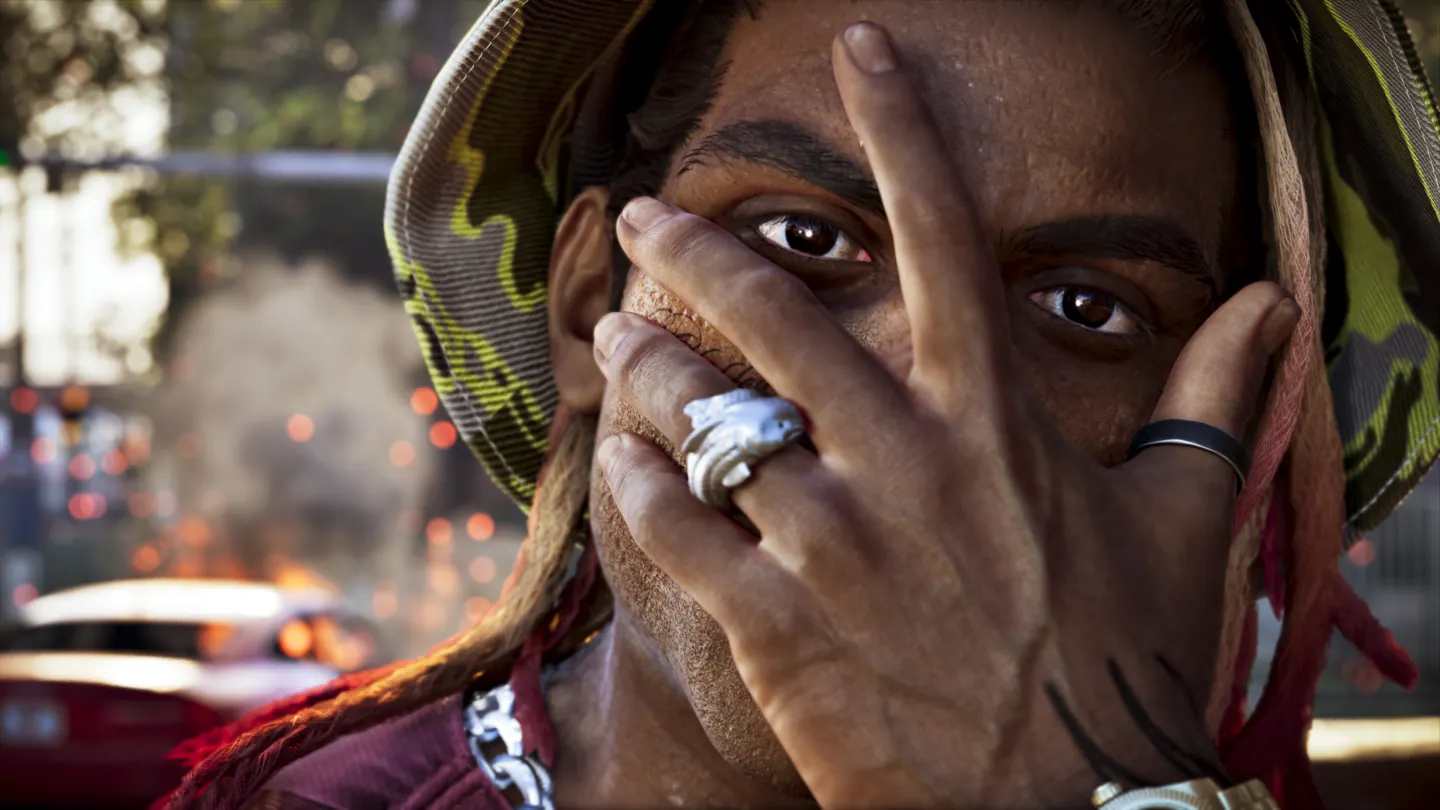
To listen on foot, buy headphones or earbuds from an Electronics shop and equip them in the Items wheel’s headgear slot. Hold D-pad Left to open the radio menu. Select a station, or move down with the right stick to access On Demand podcasts.
Find and equip headphones for each character
- Open the Index and look under Style → Electronics. Choose a nearby shop and set a destination.
- Buy headphones or earbuds with the character you want to use. Check the other protagonist’s inventory separately.
- Hold L1 or LB to open the loadout wheel. Use R1 or RB to switch to Items. Find headgear and use the Equip prompt on the headphones.
Choose a station or resume a podcast
| Action | What to do |
|---|---|
| Change music station | Hold D-pad Left. Move the right stick or use shoulder buttons to choose a station. Release the D-pad to play it. |
| Choose a podcast | With the radio menu open, move the right stick down into On Demand. Follow the episode and playback prompts. |
| Pause and continue the episode later | Pause in the On Demand list. Reopen that list in another supported listening mode to continue. |
| Turn off playback | Open the radio menu and use the off prompt for the radio or pause the current episode under On Demand. |
Troubleshoot silent headphones or a missing item
Test the car radio first. If it plays normally, check that headphones are equipped on the character you’re controlling. A device previously bought as Jason may only be in Jason’s inventory.
Check nearby ground after headphones are knocked loose during a game encounter. If the item is gone, return to an Electronics shop. When all game sound is missing, check console audio output as well as the game’s music controls.
What players are asking
Can I keep listening after getting out of a car?
r/GTA6 discussion of on-foot music and podcasts