Controls & settings
GTA 6 Blurry at a Distance? Compare Camera 3 and Motion Blur
Quick answer
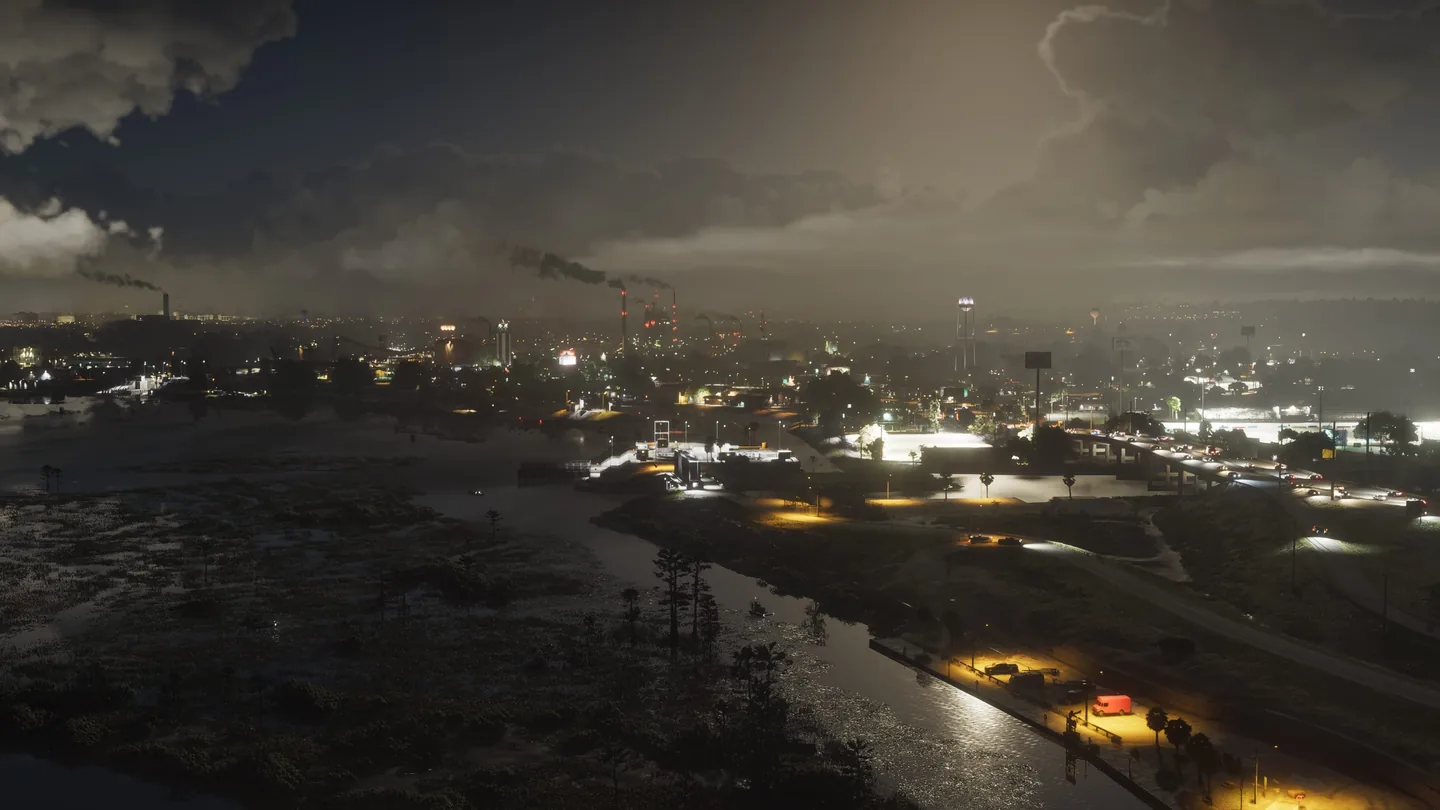
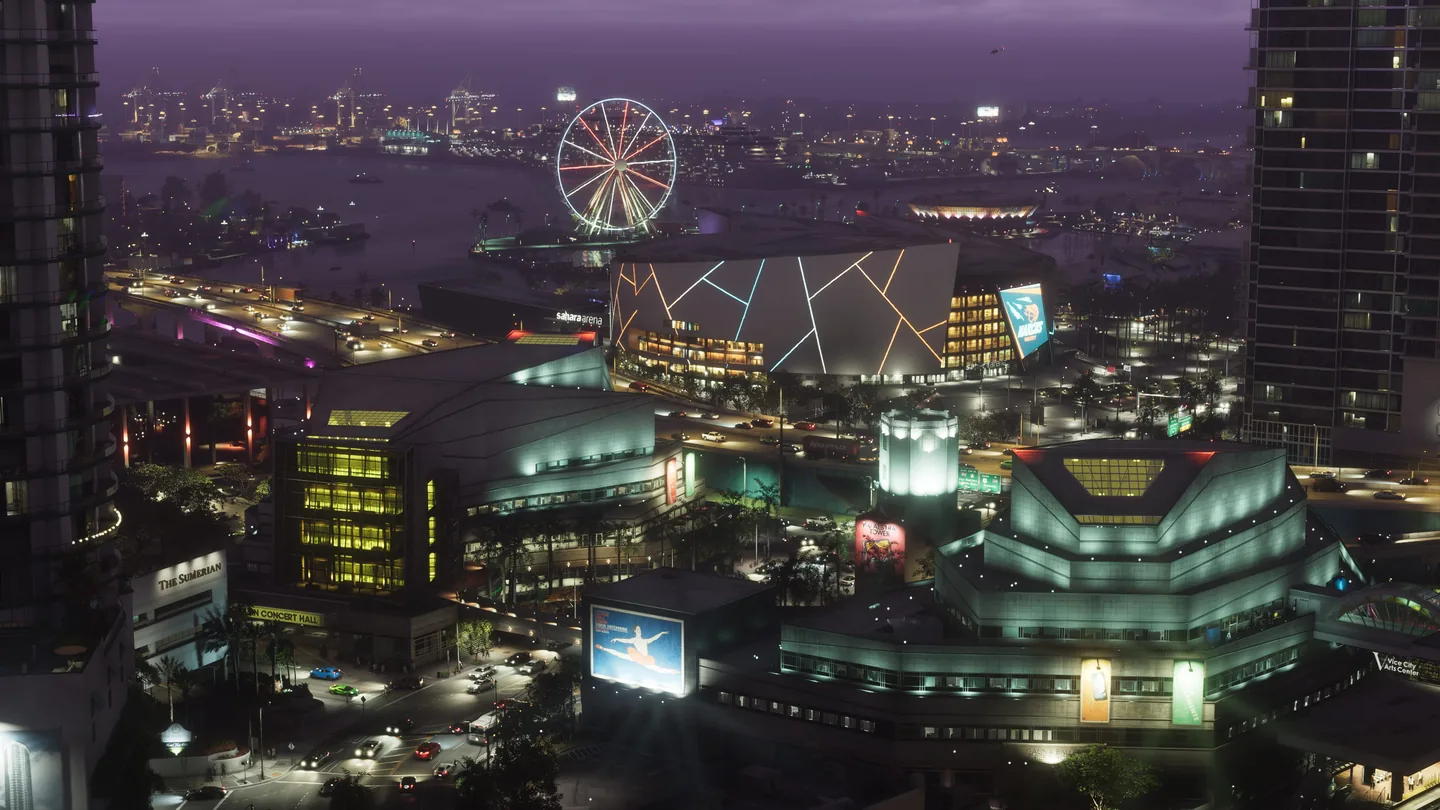
On foot in GTA 6, hold D-pad Down and use the Camera prompt. Press Square on PS5 or X on Xbox to cycle to the third camera distance. Look at the same distant sign or streetlight with the camera still. Camera 3 made the background clearer in a recorded night comparison. If the image only smears as you turn, test Motion Blur Strength instead.
Compare the third camera distance on foot
A clearer background here comes from changing the camera distance and the scene’s depth of field. This retains the third-person view while you move around. It leaves the game’s render resolution and frame-rate target as they were.
- Stand in free roam and face a distant, readable detail. A lit sign or small streetlight is a useful reference. Compare from the same spot with the right stick released.
- Hold Down on the D-pad and follow the Camera prompt at the lower right. Use Square on PS5 or X on Xbox with the default layout. Cycle through the distances until you reach the third on-foot view.
- Let the camera settle. Check the edges around the same sign or light. The filmed comparison shows a difference between Camera 1 and Camera 3, especially in the night scene. Try the closer view again if you prefer its framing.

Use the symptom to choose the next test
For a stationary close look at small text, hold the aim trigger with your weapon put away and click the right stick. Danial ZH compares that inspection view with Camera 1 before demonstrating the on-foot camera shortcut. Use Camera 3 when you want to keep walking, and inspection when you just want to read something.
| When it happens | What to compare |
|---|---|
| Distant scenery is soft with the character and camera still | Try the Camera 3 comparison before changing brightness. Use the same spot, weather and view direction. |
| The image is clear while still and smears when you pan | Open Settings → Display → Visual Effects and lower Motion Blur Strength. Test the same short pan. |
| Dark areas look gray or bright displays lose detail while still | Check in-game HDR Calibration with the camera and Motion Blur settings held steady. |
Frequently asked questions
Is Camera 3 a performance mode?
Camera 3 is an on-foot viewing distance. The recording compares how the same scene looks from different camera distances.
Will changing Motion Blur Strength clear distant blur while I stand still?
Motion Blur Strength addresses the smear during movement. Try the camera distance test first when the view is already stationary.
Can I get the same result by zooming in Photo Studio?
Photo Studio has its own camera and depth-of-field controls for saved images. For ordinary movement, change the on-foot distance with the Camera prompt.