Controls & settings
GTA 6 Dark Flashbang Setting and Brightness Reduction
Quick answer
Pause and open Settings → Display → Visual Effects → Flashbang. Switch Bright 1/2 to Dark 2/2 to replace the bright flash with a dark one. The recorded menu offers those two choices. If the glare comes from lights in the world, try the separate Brightness Reduction switch below Focus Trail Colorblind Mode.
Set Flashbang to Dark in the Display tab
The help panel describes a choice between bright and dark flashes. Use the selection to change how this effect looks. You’ll still see a screen effect when a flashbang goes off.
- Open the pause menu with Options on PS5 or Menu on Xbox. Select Settings, then use the tab buttons to reach Display.
- Scroll down through Visual Effects. Flashbang is below Blood & Gore Intensity. Highlight Flashbang and use the arrows to choose Dark 2/2. The PS5 recording shows the previous option as Bright 1/2.
- Back out of the pause menu after confirming Dark is still displayed. To restore the bright flash, use the same Flashbang row and choose Bright.
Identify the effect before changing other sliders
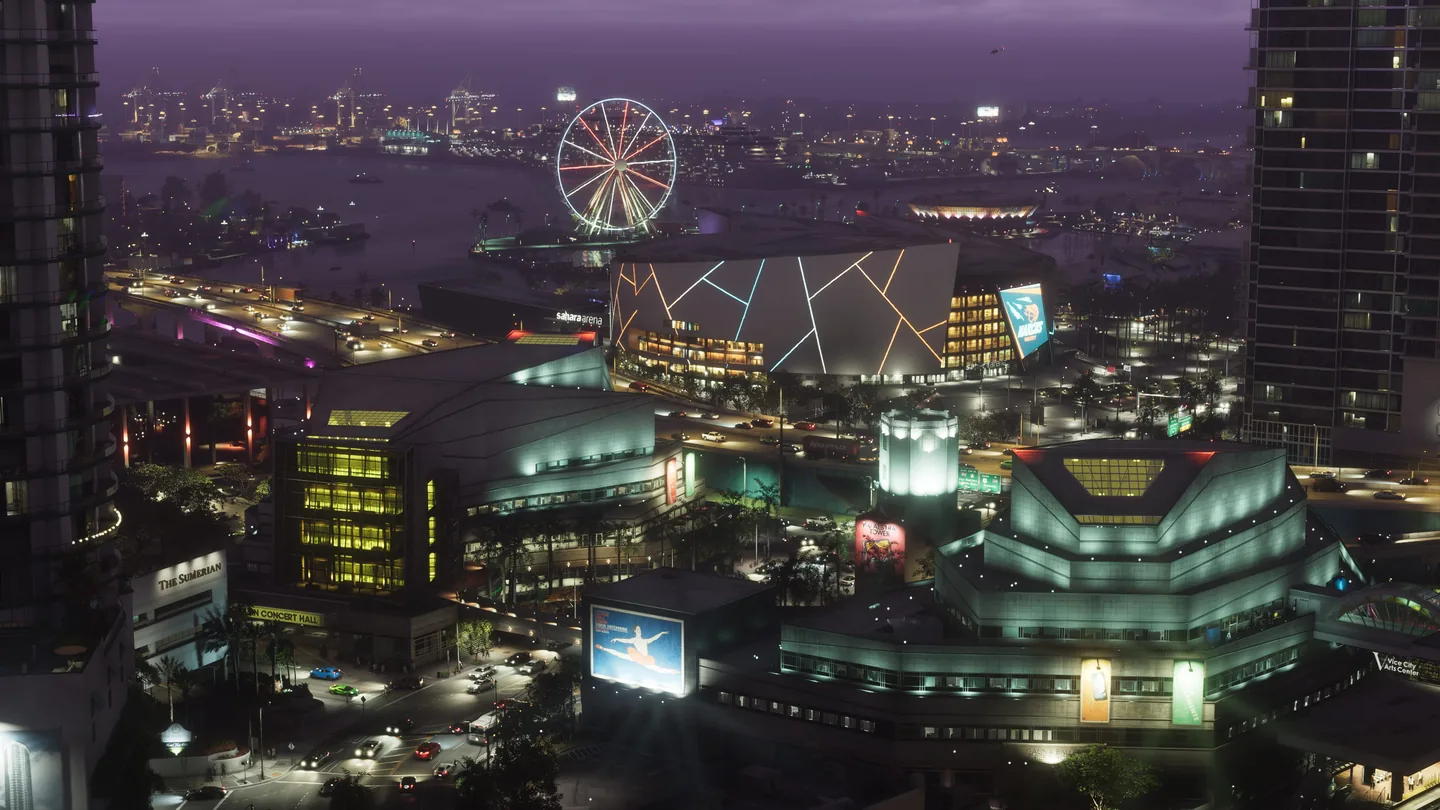
Return to the same street and camera angle to compare normal lighting after enabling Brightness Reduction. The game places it below Focus Trail Colorblind Mode, two rows down from Flashbang. Change one setting at a time so you can tell which adjustment helped.
| When the screen changes | First row to check |
|---|---|
| A bright full-screen flash after a flashbang | Flashbang → Dark. |
| Everyday lights are harsh while you drive or walk | Try Brightness Reduction and compare the same location. |
| A screen effect when you take damage | Try a lower Hit Effects Intensity in Visual Effects. |
| A faint guide trail is hard to distinguish | Try Focus Trail Colorblind Mode below Flashbang. |
Check visibility in a scene you can repeat
Compare a bright street and a darker interior at your usual display settings. If an effect only appears at the screen edges when your character is threatened or injured, check when it starts and use the matching awareness or player status slider.
If the entire image is hard to see even when you stand still, compare the in-game HDR or brightness calibration. Save those changes for after the flash and ordinary lighting check so you can return to your previous setup one setting at a time.
Frequently asked questions
Can I find a separate Off option for Flashbang?
The filmed Flashbang row has Bright and Dark. Use Dark for the alternative to the bright flash.