Controls & settings
GTA 6: Turn Off Slow-Motion Kill Shots and Crash Cameras
Quick answer
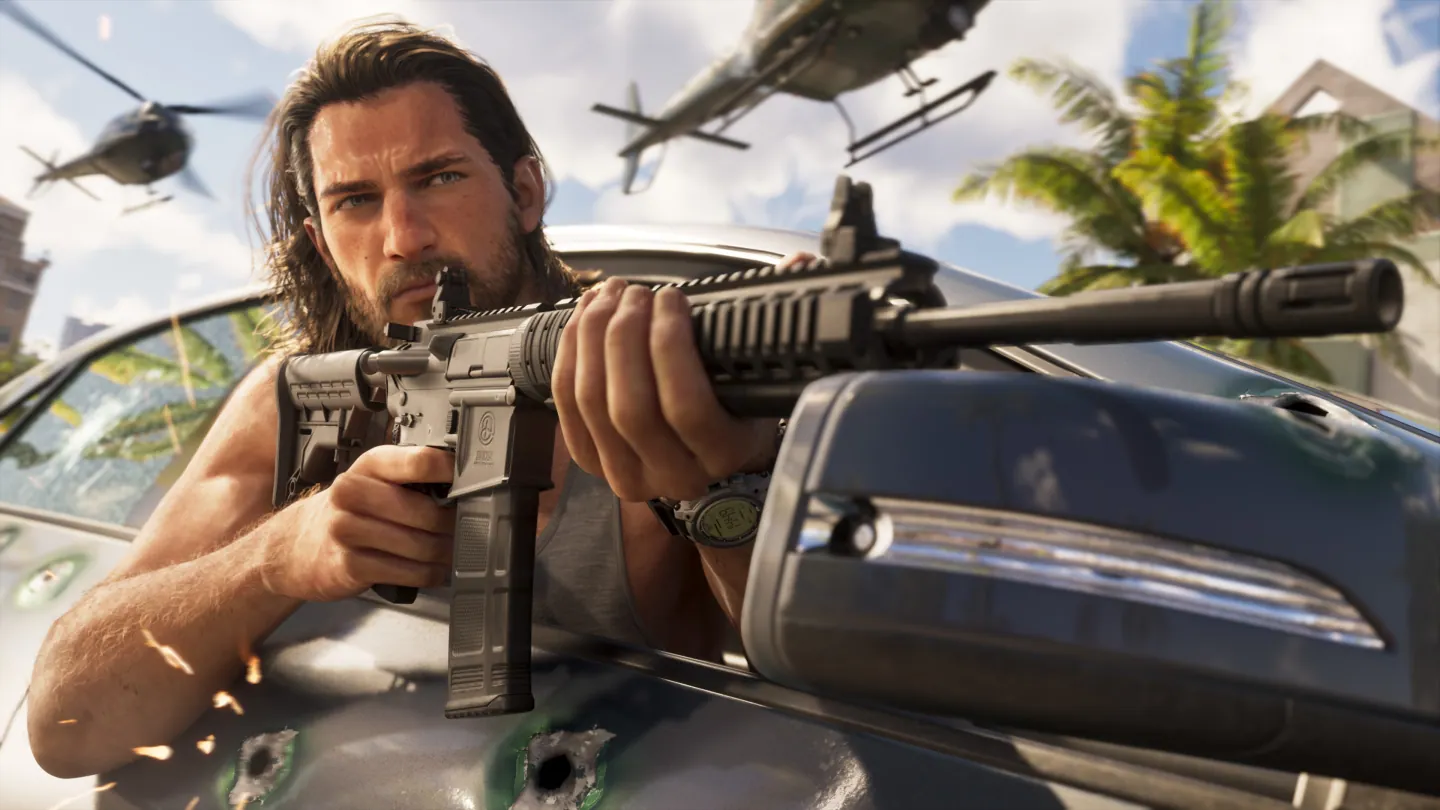
Open Settings → Camera and scroll to Cinematic, near the bottom. Set Cinematic Vehicle Crash Frequency to 0 to turn off the optional slow-motion crash shots. Set Cinematic Kill Shot Frequency to 0 if you also want to stop the optional close-ups during combat. Each slider works independently.
Scroll to Cinematic below Underwater
- Pause, open Settings and select the Camera tab. Scroll past the vehicle follow controls and the Underwater section to Cinematic.
- Select the upper row, Cinematic Kill Shot Frequency, for the slow-motion combat view. Choose the row immediately below it, Cinematic Vehicle Crash Frequency, for the special angle during vehicle crashes.
- Move the slider for the interruptions you want to remove all the way left to 0. If you still enjoy one effect, leave the other row at its current value. Resume the game with your changes applied.
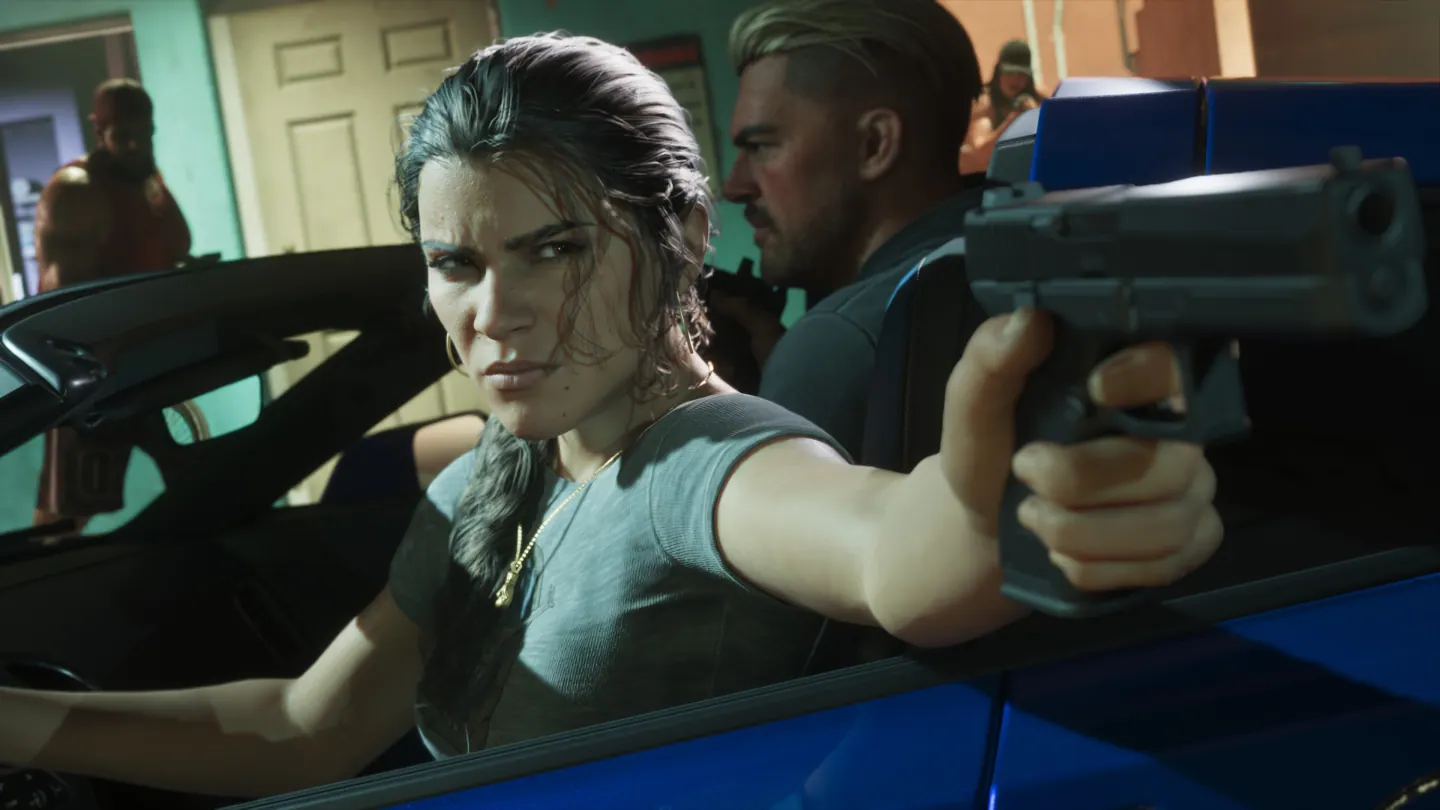
Match the setting to the effect on screen
If the view starts changing while you stand idle, check the separate Idle Camera switch in the same Cinematic section. A scripted scene can still use its own dramatic angle.
| What is bothering you | Where to look |
|---|---|
| Brief slow motion and an external view after a collision | Camera → Cinematic → Cinematic Vehicle Crash Frequency. |
| Occasional slow-motion close-up during combat | Camera → Cinematic → Cinematic Kill Shot Frequency. |
| A shake or bounce without a cut to a different angle | Camera → Comfort. Change Camera Shake or Camera Bob and compare the same movement. |
| The car takes too much damage when you hit something | Gameplay → Reduced Vehicle Damage. This is a separate setting for how much damage the vehicle takes. |
Frequently asked questions
Can I turn off crash shots and keep the kill camera?
Yes. Change Cinematic Vehicle Crash Frequency and leave Cinematic Kill Shot Frequency where it is.
Why is there still shaking after I changed the crash slider?
The frequency slider controls the special slow-motion shot. Check Camera Shake under Camera → Comfort if the regular view is still shaking.