Controls & settings
GTA 6 iFruit Selfie Poses and Expressions
Quick answer
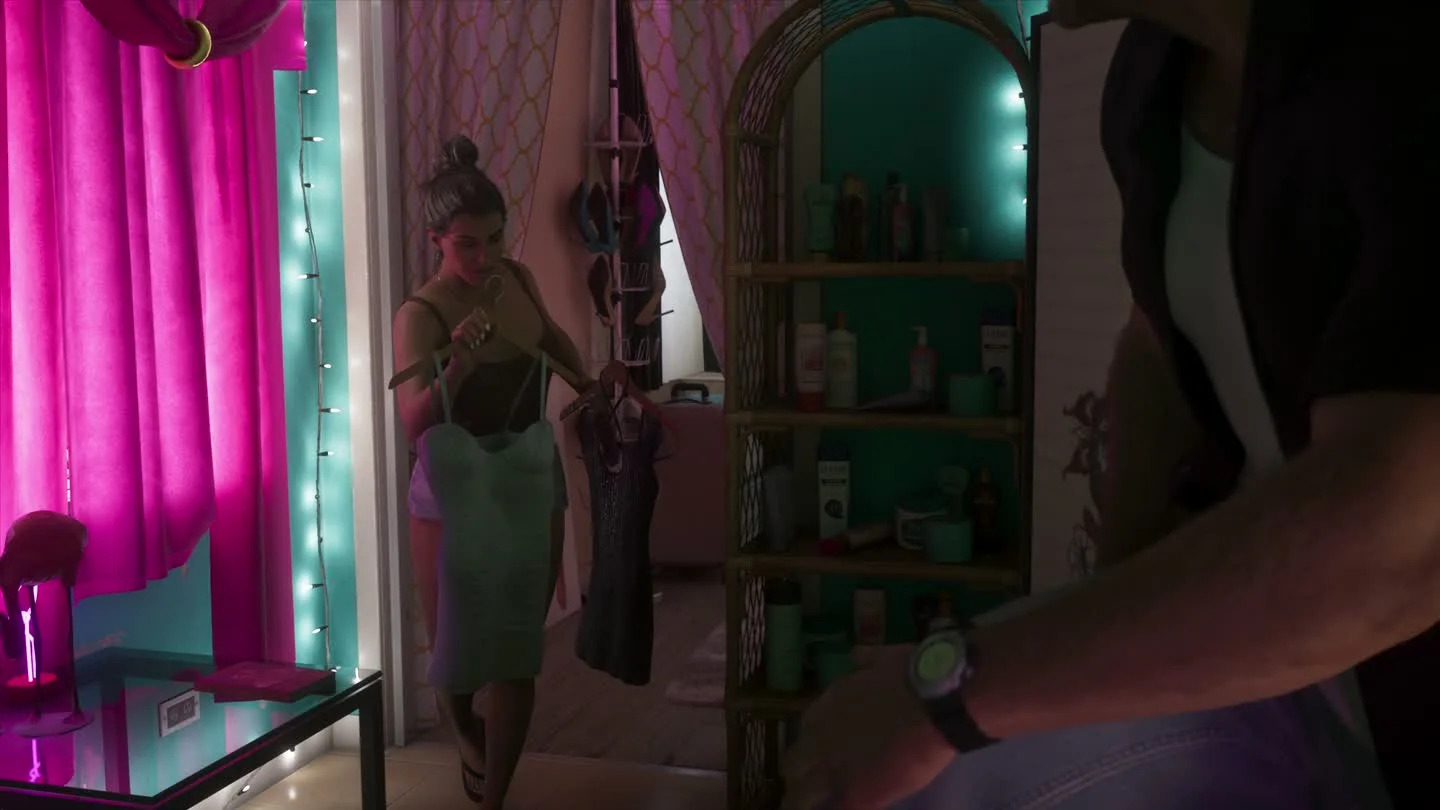
Open Camera on the iFruit and click R3 to switch to Selfie. On the default PS5 layout, use D-pad Up or Down for the pose and Left or Right for the expression. Press R2 to take the picture and check that the Gallery counter increases.
Find the pose and expression controls
- Press D-pad Up to open the iFruit, highlight Camera and select it with Cross on default PS5 controls.
- Click the right stick for Selfie. Check that the camera faces your character and that Pose and Expression appear in the bottom-right control list.
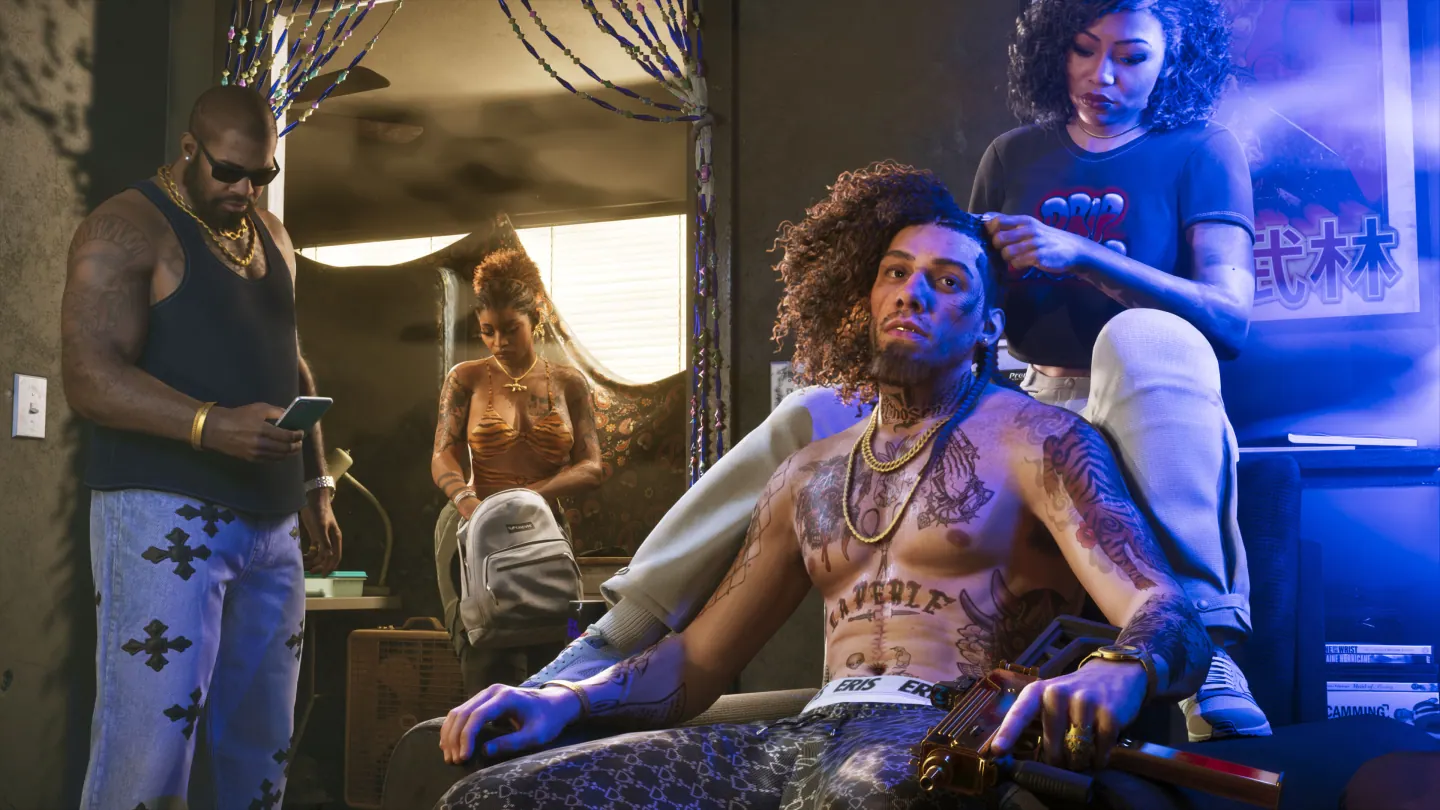
- Use D-pad Up or Down to cycle poses. Use D-pad Left or Right to change the facial expression independently. The captured Jason menu shows six poses and seven expressions.
Take the shot and check My Photos
Check the preview and follow the displayed Light prompt if you want to change the lighting. Press R2 for Take Photo after you choose both the pose and the expression.
Watch the Gallery count in the camera controls. On the recorded PS5 menu, Triangle opens Gallery. Select My Photos and look for the latest image.
If Partner Pose is greyed out in a solo selfie, use the available Pose and Expression prompts for your character. Both selections stay in the preview while you decide whether to take the picture.
If the Gallery reads 32/32, clear a slot before taking another picture. Click R3 again to return to the rear camera. Its D-pad inputs control a different set of options.
Frequently asked questions
Why does the D-pad change camera zoom instead of my pose?
Use R3 to switch to the front-facing selfie view. Look for Pose to appear in the controls.
How do I know the selfie saved?
Check whether the Gallery count went up, then look for the new shot in My Photos.