Controls & settings
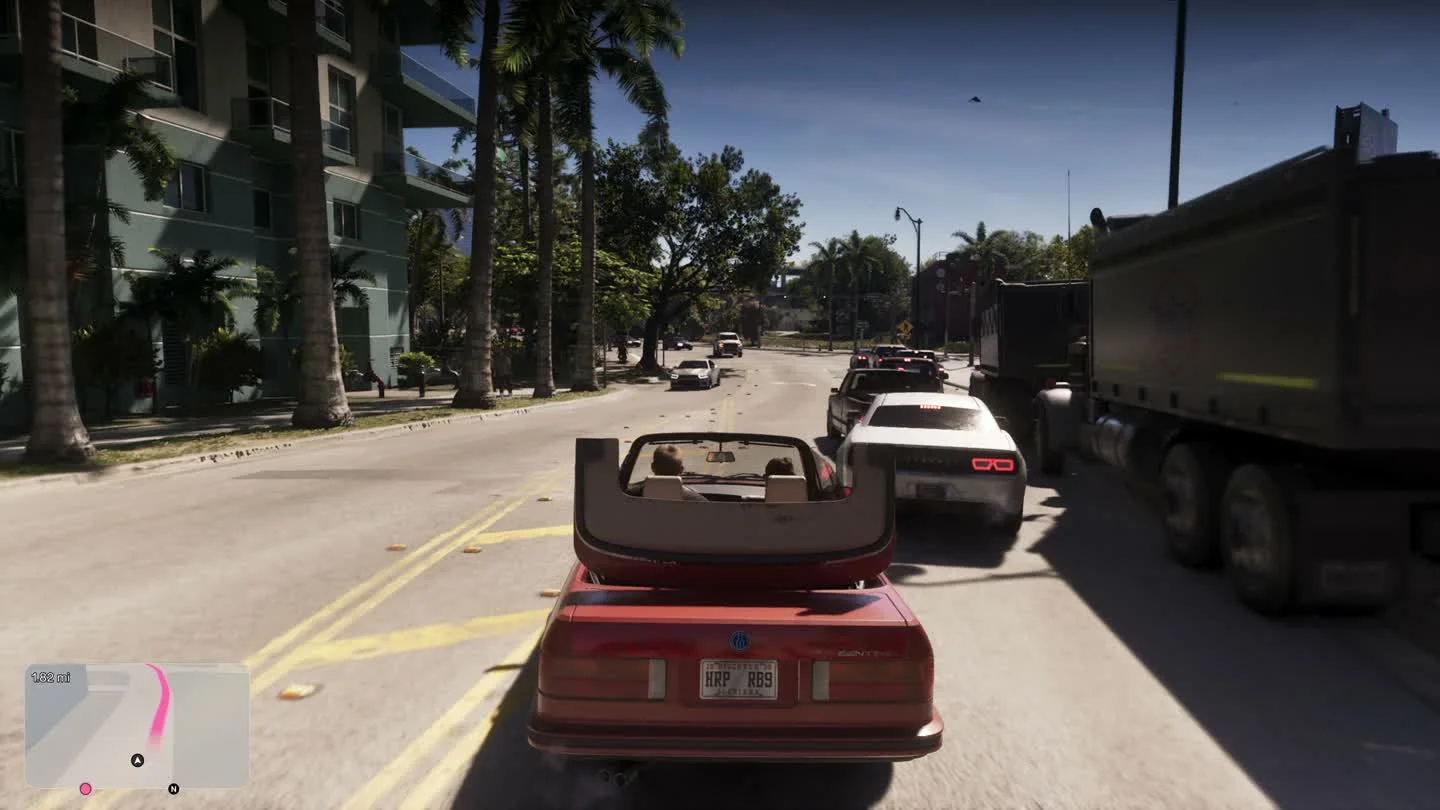
GTA 6 Navigation Experience and Minimap Settings
Quick answer
Pick Minimap and Compass (Dynamic) if you want both the local road layout and nearby objective markers when needed. Choose Always On if the minimap keeps disappearing while you play. You can adjust individual options in Settings under HUD → Navigation after setup.
Choose a navigation preset for how you play
| Preset | What you’ll see | Use it when |
|---|---|---|
| Minimap (Dynamic) | The map appears as needed and can be recalled with the D-pad. | You want local street guidance with less HUD while exploring. |
| Minimap and Compass (Dynamic) | The compass adds mission, personal and nearby point markers to the minimap setup. | You often look for points of interest before choosing where to go. |
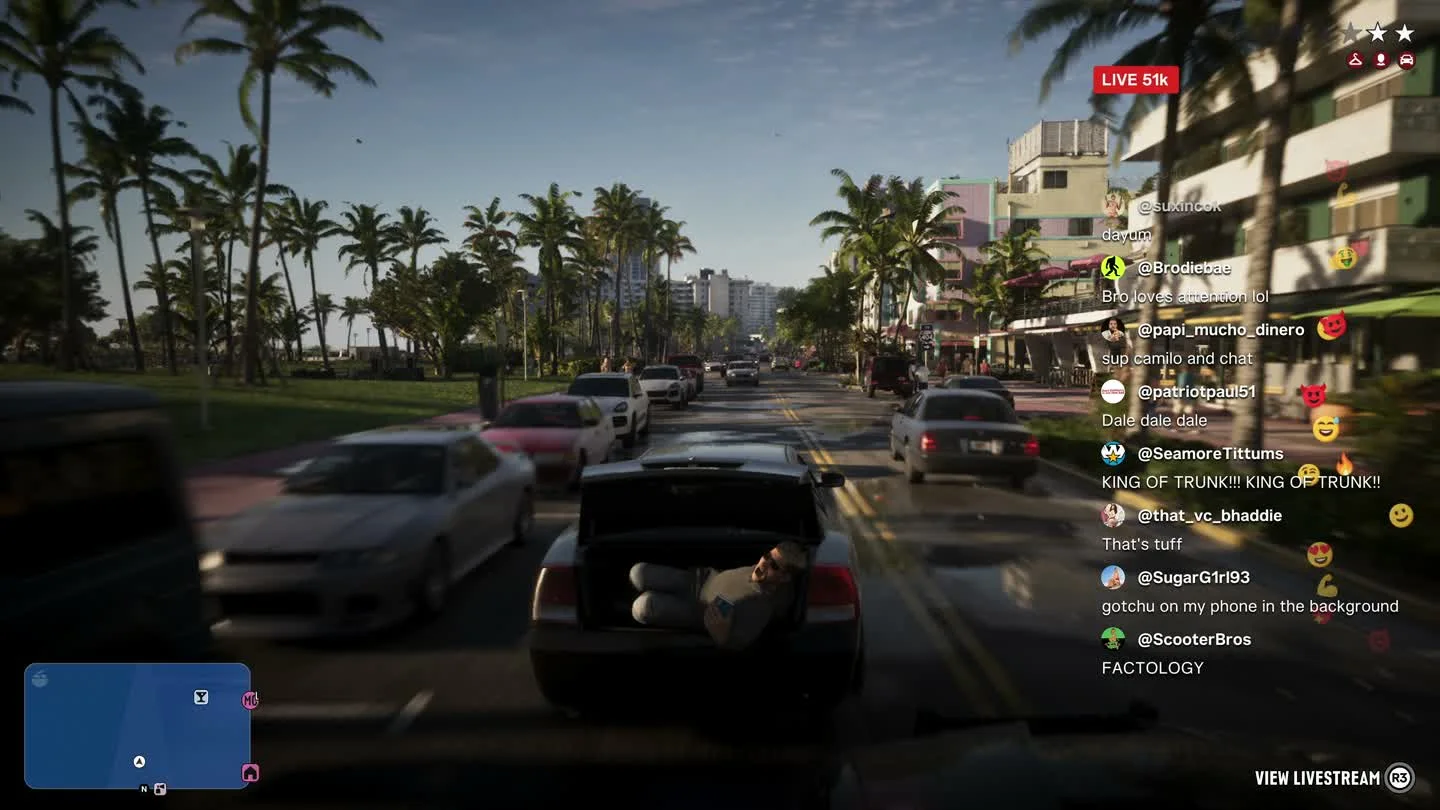
| Always On | Navigation stays visible between prompts and action. | You prefer to glance at the route without calling up the HUD. |

Check whether the destination or the display is missing
Open the main map and see whether a destination is actually selected. If the destination appears on the map while the minimap is hidden, check the dynamic HUD setting first. If the destination itself is missing, choose the current objective again using the map or nearby waypoint shortcut.
Think of the minimap as your turn-by-turn view and the compass as a way to identify directions or nearby places. You can keep whichever one helps in the current activity.
Frequently asked questions
Does the first navigation choice lock my settings?
The opening choice is a starting preset. Go to Settings → HUD → Navigation to change which parts you see during the story.